
How to add an admin to a Facebook page: Do you want to add an admin to your Facebook page, This post will show you a step by step guide (with pictures) on how to go about it.

Step 1: Go to your Facebook page (link)
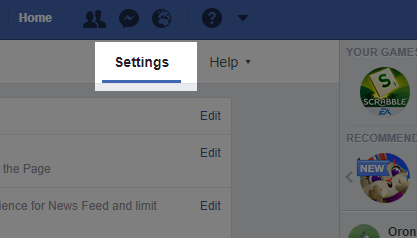
Step 2: Select your page of choice. Then hit the settings link at the top right hand side of the page.
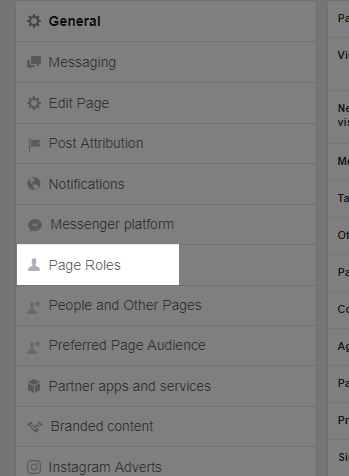
Step 3: On the page that loads. Check the left panel and click on Page Roles.
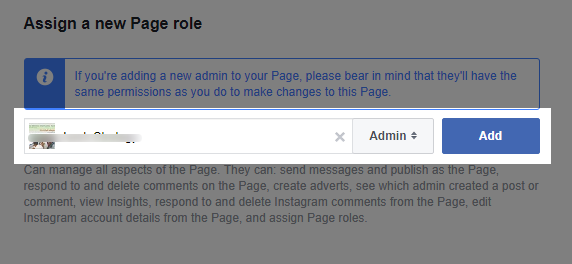
Step 4: On the new page. Scroll down to the Assign a new Page role section.
Enter the person’s name and confirm your choice. Click the Add button.
Step 5: You will be alerted to enter your Facebook password.
Enter the correct password and click on submit. A notification will instantly be sent to the new admin.
Found this useful? Please consider sharing it.
Step 1: Go to your Facebook page (link)
Step 2: Select your page of choice. Then hit the settings link at the top right hand side of the page.
Step 3: On the page that loads. Check the left panel and click on Page Roles.
Enter the person’s name and confirm your choice. Click the Add button.
Step 5: You will be alerted to enter your Facebook password.
Enter the correct password and click on submit. A notification will instantly be sent to the new admin.
Found this useful? Please consider sharing it.
0 comments:
Post a Comment